Before you begin
One app, two jobs
MyBatteryKit helps you understand what your battery is doing and decide how it should charge. Monitoring is passive; controls such as charge limits and discharge require the system helper.
See charge, health, cycles, power, temperature, and time estimates in one place.
Choose a manual charging target and use Top Up or Discharge when your plans change.
With Pro, respond to schedules, battery conditions, adapters, places, networks, devices, and apps.
Set up
Getting started
Give yourself five minutes for the first setup. The helper is the important part: it lets the app apply charging decisions without asking for your administrator password every time.
- 1
Install and open the app
Download MyBatteryKit, move it to Applications if prompted, and open it. Keeping the app in Applications avoids update and permission confusion later.
- 2
Install the privileged helper
Follow the setup prompt and approve the macOS administrator request. This helper is required for charge limits and hardware controls; monitoring can still work without it.
- 3
Choose notification access
Allow notifications if you want alerts for battery, charging, temperature, and automation events. You can change this later in macOS System Settings.
- 4
Confirm the connection
Open the dashboard and check that battery data appears. If a target will not apply, open Diagnostics and run the available helper and hardware checks.
Learn the screen
Reading the dashboard
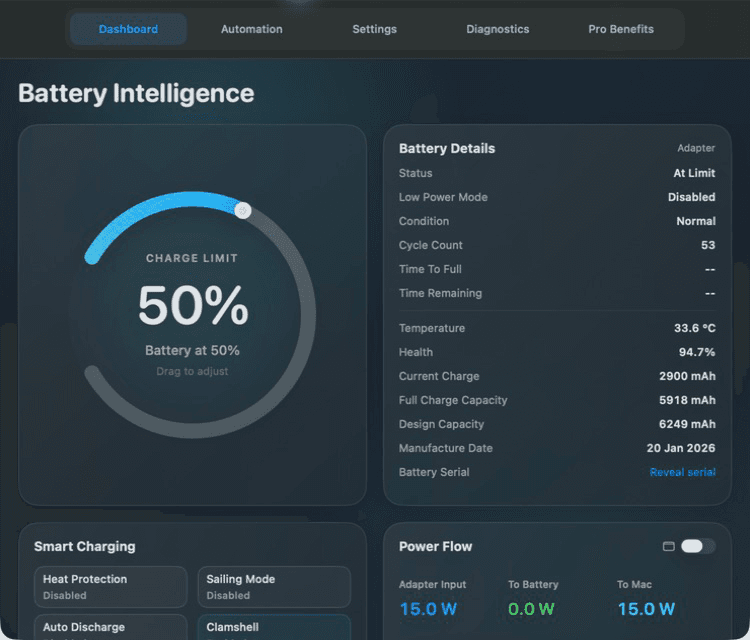
The dashboard starts with the current state, then moves from everyday controls into deeper health and power details. Treat the live readings as a snapshot and history as the more useful long-term signal.
Charge
The energy currently stored, shown as a percentage of full charge.
Health
The battery’s present capacity relative to its original design capacity.
Cycle count
A cumulative measure of battery use. Partial discharges add together over time.
Power flow
Live energy direction and rate. Availability and detail depend on what your Mac reports.
Temperature
A current thermal reading and, with Pro, analytics that help reveal repeated heat exposure.
Time estimate
An estimate based on present use or charging rate; it naturally changes as workload changes.
Everyday controls
Charge limits, Top Up & Discharge
Set a manual charge limit
- Open MyBatteryKit or its menu bar panel.
- Move the charge-limit control to a target between 30% and 100%.
- Leave the app running while it manages charging. The battery may sit close to the target rather than matching it every second.
Mostly at a desk
Choose a lower daily ceiling
An 80% target is a practical starting point when power is nearly always available.
Heading out
Use Top Up
Temporarily prepare for longer unplugged use without rebuilding your normal desk setup.
Above your target
Use Discharge
Request active discharge toward the chosen level when supported by your Mac and helper backend.
Stay focused
Menu bar controls
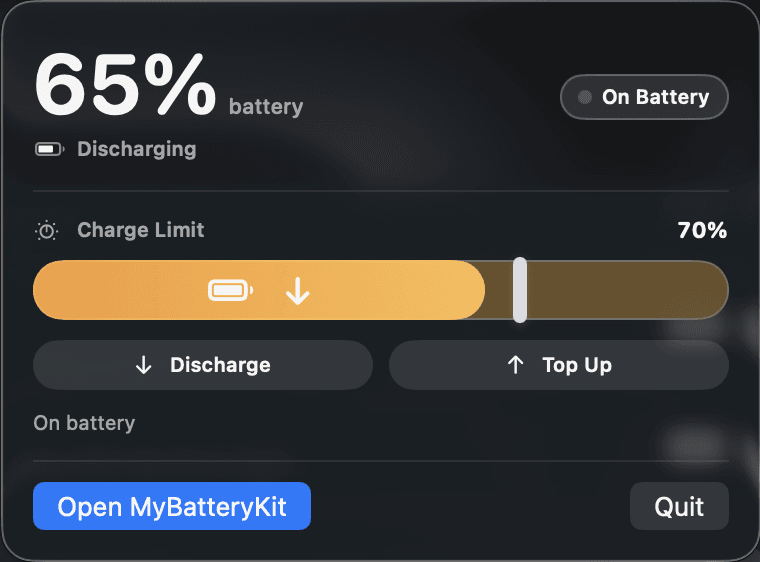
The menu bar panel is the fastest way to check status or change a daily charging decision without opening the full dashboard.
- View battery percentage and charging state.
- Adjust the current charge limit.
- Start Discharge or Top Up.
- Review power flow and active features.
- Open the full app when you need history or settings.
In Settings, you can choose the menu bar icon and whether its percentage is shown.
Tune the behavior
Smart charging features
Respond to high temperature
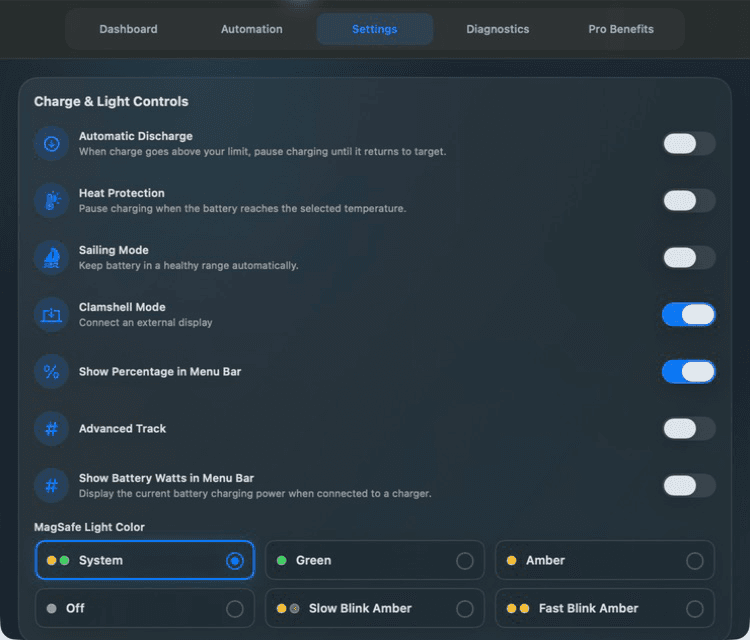
Use a thermal safeguard when sustained heat matters more than reaching the target immediately. This is a Pro feature.
Avoid constant edge-of-limit switching
Allow the battery to move within a controlled range instead of trying to hold one exact percentage. This is a Pro feature.
Return toward your preferred level
Automatically bring an over-target battery down when the supported charging backend can do so. This is a Pro feature.
Keep desk setups practical
Configure charging behavior for use with the display closed and external peripherals connected.
Personalize compatible hardware
Choose indicator-light behavior where the Mac and adapter expose this control. This is a Pro feature and is hardware-dependent.
Prevent accidental input
Temporarily lock keyboard input while cleaning. Follow the on-screen exit instruction before starting. This is a Pro feature.
Pro chapter
Workflows & automation
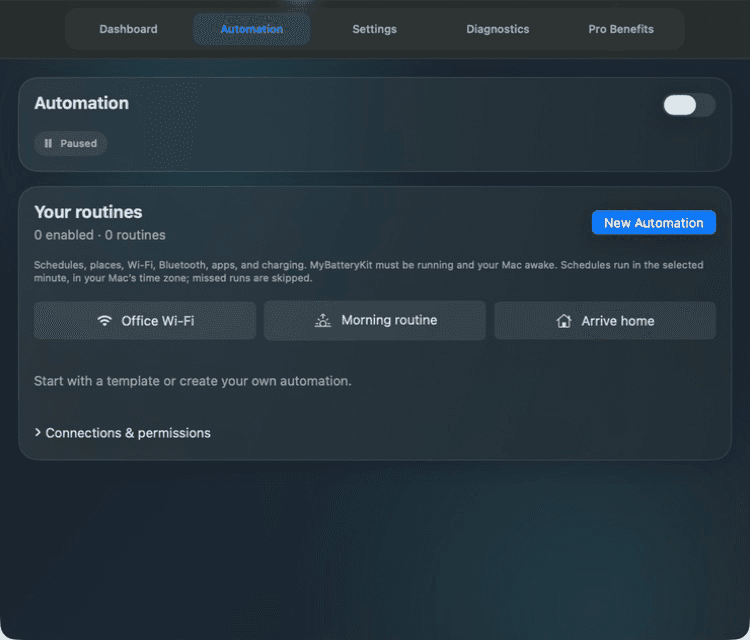
Workflows turn a repeated charging routine into a trigger and an action. Start with one simple rule, test it, and only then combine multiple conditions.
A reliable workflow recipe
- Name the workflow after the outcome, such as “Office desk · 80%”.
- Pick one trigger you can reproduce easily.
- Choose the charging action or Shortcut and save.
- Test while MyBatteryKit is running and the Mac is awake.
- Check Diagnostics if the trigger was seen but the action could not run.
Run at the selected minute and timezone. A run missed while the Mac sleeps is skipped.
Wi-Fi and Bluetooth are checked periodically. A connection already present when the app starts may not count as a new trigger.
Location-based workflows need the appropriate macOS permission. Saved place coordinates remain part of your local app setup.
Apple Shortcuts can extend a workflow, but the Shortcut’s own app and privacy permissions still apply.
Understand patterns
History & analytics
Pro history helps answer questions that a live percentage cannot: Is capacity changing? Does the Mac repeatedly run hot? Which habits lead to long high-charge periods?
Battery history
Review charge and battery behavior over time and export available history as CSV for your own analysis.
Health & cycles
Compare capacity health with accumulated cycle count instead of judging either number alone.
Temperature analytics
Look for repeated heat patterns and relate them to charging, workload, and environment.
App energy usage
Use it as a CPU-based indicator of demanding apps—not as a direct per-app wattmeter.
Unlock Pro
Activation & license seats
Activate this Mac
- Open the Upgrade or license screen in MyBatteryKit.
- Enter the license key and purchase email exactly as used at checkout.
- Complete activation and confirm that Pro features are available.
Manage your seats
Monthly, yearly, and lifetime options are available with 1, 3, or 5 seats. Open your account to review active devices. Revoke an old Mac when you need to free a seat for a replacement.
Fix common issues
Troubleshooting
The charge limit does not apply
Confirm that the helper is installed and connected, then run Diagnostics. Disconnect and reconnect power once, and verify that your Mac exposes a working charging backend. Avoid issuing several conflicting controls in quick succession.
Battery or adapter details are missing
Some telemetry is hardware-dependent. Reopen the app after reconnecting the adapter. If the main battery status works but one advanced value does not, the Mac may simply not report that field.
A workflow did not run
Make sure MyBatteryKit was running and the Mac was awake. Check the trigger’s permissions and remember that missed scheduled runs are skipped. For network or Bluetooth rules, reproduce a fresh connection after the app is open.
Notifications do not appear
Open macOS System Settings → Notifications → MyBatteryKit and allow notifications. Then confirm the relevant notification options inside the app.
Pro is not recognized
Check that both the key and purchase email are correct, that a seat is available, and that the Mac is online during activation. Revoke an unused device from your account if all seats are occupied.
The app behaves unexpectedly after an update
Quit and reopen MyBatteryKit, check the helper status, and run Diagnostics. If the issue continues, include your macOS version, Mac model, app version, and the failed step when contacting support.
The diagnostics view keeps the latest activity visible so you can identify whether a helper, hardware, or automation step failed.
Quick answers
Frequently asked questions
Can I limit my MacBook charging to 80%?
MyBatteryKit includes a manual charge limit from 30% to 100% in its Free tier, so you can choose an 80% target. Charging controls require the privileged helper and a working hardware backend. Use the app’s diagnostics if the target is not being applied.
What is free, and what requires MyBatteryKit Pro?
Free includes the real-time battery dashboard, menu bar indicator, manual charge limits, manual top up and discharge controls, clamshell charging support, and basic notifications. Pro adds automatic discharge, sailing mode, heat protection, battery and temperature automation rules, advanced power flow analytics, battery history with CSV export, app energy usage, MagSafe controls, keyboard cleaning mode, and Siri and Apple Shortcuts.
What battery information can MyBatteryKit show?
The dashboard shows battery percentage, health, cycle count, charge state, and time estimates. Pro adds power flow, temperature analytics, and history. Adapter telemetry is available where the hardware reports it. App energy usage is a CPU-based proxy, not a direct per-app wattmeter.
How can I use MyBatteryKit when my MacBook stays plugged in?
Set a manual charge target for desk use, then use top up before you unplug. Pro adds sailing mode and automatic discharge for charging workflows, with rules based on battery level, temperature, or adapter state.
Does every Mac support every charging feature?
Hardware controls depend on the Mac, macOS, the installed helper, and the available backend. MagSafe light controls require compatible hardware; adapter details depend on reported telemetry. Download the Free app and check its diagnostics on your Mac before purchasing Pro for a specific hardware feature.
How is MyBatteryKit Pro licensed?
Pro offers monthly, yearly, and lifetime options with 1, 3, or 5 seats. See the pricing page for current prices and payment availability. You can manage activations in your account and revoke an old device to free a seat.
End of handbook
Set a sensible limit. Keep an eye on the trend. Let the Mac be a Mac.
Start with the Free app, verify the controls on your hardware, and add Pro when automation or long-term analysis will genuinely help your routine.
MyBatteryKit Handbook · Back to cover ↑